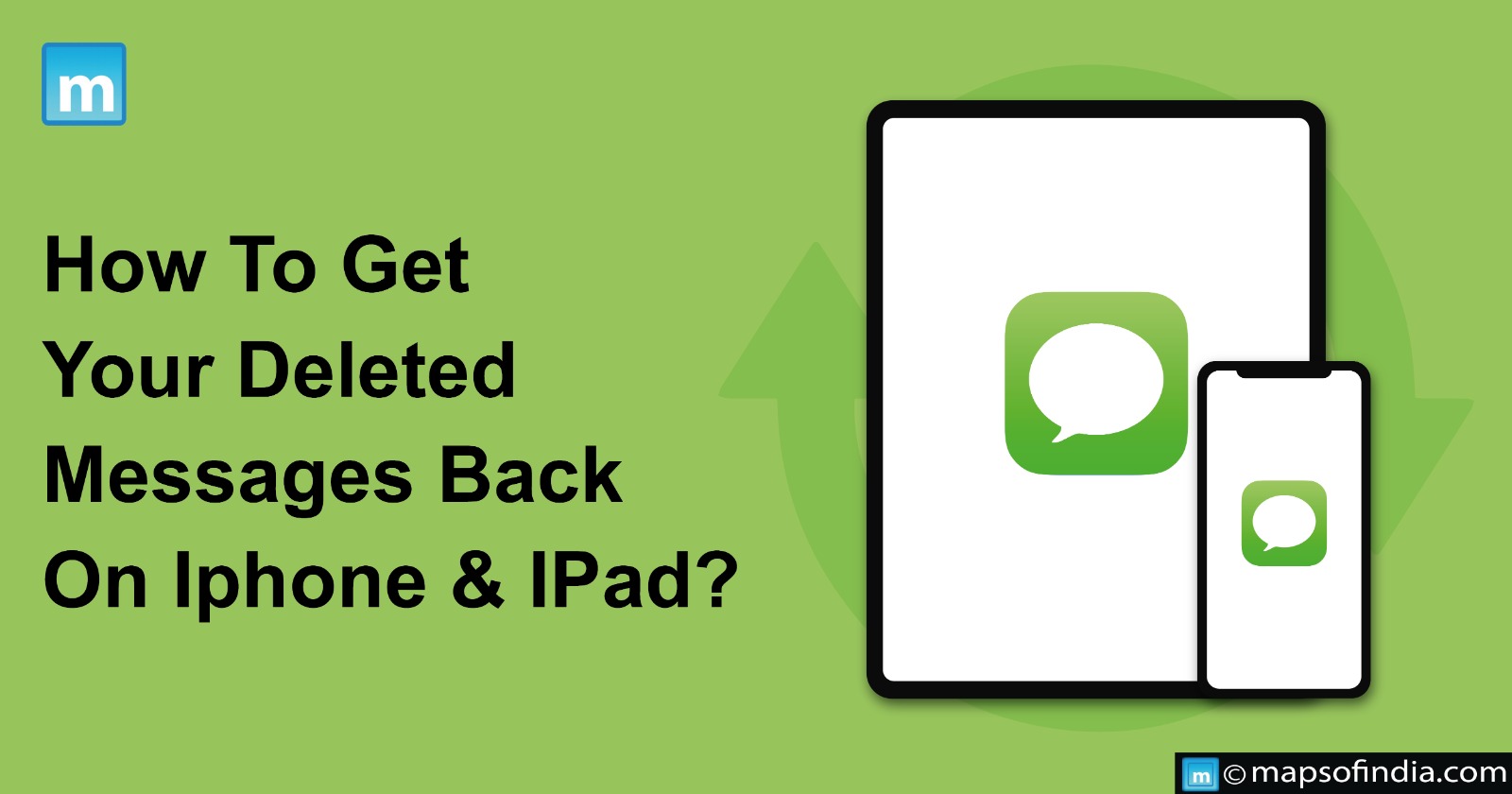
Restore Messages using the New iOs 16 and iPasOs 16.1 feature
Follow the given points stepwise to restore text messages on iPhone and iPad using the latest feature.- Open the Messages app on your iPhone.
- On the Conversations page, click the Edit button in the top left corner. It should be noted that if Message Filtering is turned on, the Edit button won't show up. In these circumstances, you can select the Filters from the conversations page.
- From the drop-down menu, pick Display Recently Deleted.
- Next, choose the conversations you wish to recover and click Recover.
- Either Recover Message or Recover [number] Messages should be selected.
- Click the Done button to finish.
Restore All Deleted Messages with iCloud
Follow the given points stepwise to restore text messages on iPhone and iPad if you have backed up messages on iCloud.- On your iPhone, first, select "Settings."
- Tap on the "General" section.
- Next, select "Erase All Content and Settings" from the "Reset" menu. Restart your smartphone, then select "Restore from iCloud Backup" when you reach the "Apps & Data" page.
- A popup to log into your "iCloud" account will appear. Select "Choose Backup" after doing that. Verify your choice if necessary. It is necessary for recovering iPhone SMS.
- The recovery process will then begin.
Restore Deleted Messages from iPhone using iTunes
Here are the steps to restore text messages on iPhone and iPad using iTunes.- Begin by connecting your iPhone to the Mac you use to sync it and launch iTunes.
- Your iPhone should appear in a box at the screen's top right corner.
- Select your iPhone from the list of available devices.
- Check the date of your last backup, and if you wish to restore your iPhone to that backup, click the "Restore Backup" button.
- This process will take a few minutes, during which all your previously backed-up data will replace the data on your phone. As long as you have backed up your messages before deleting them, they should now be visible in the standard messaging list on your iPhone.